Screen by screen
What money apps look like inside
311 images from 29 apps, grouped by task so you can compare how each one handles the same job. Every image shows where we found it, with the date.
App Store and Google Play images are the apps' own marketing, so they can show sample data and staged layouts. Help center images come from each app's support articles for one task. Where screens come from.
Getting started

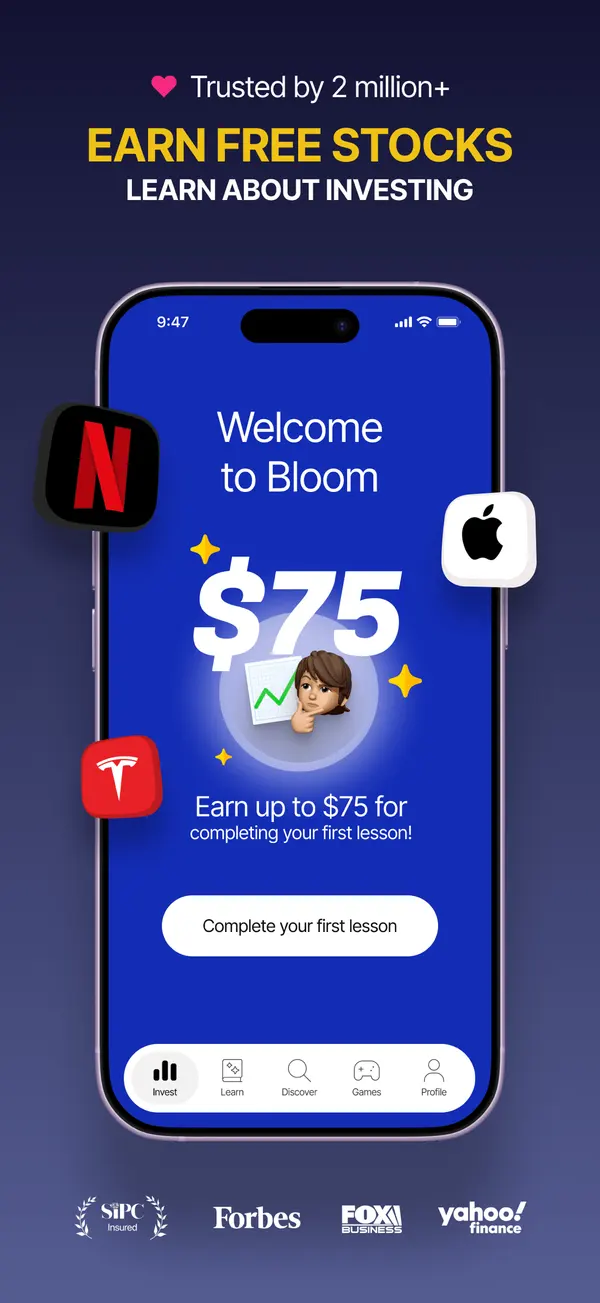
App Store marketing imageApp Store image with the headline "Earn free stocks" showing a Welcome to Bloom screen offering $75 for completing a first lesson.App Store listing, as of

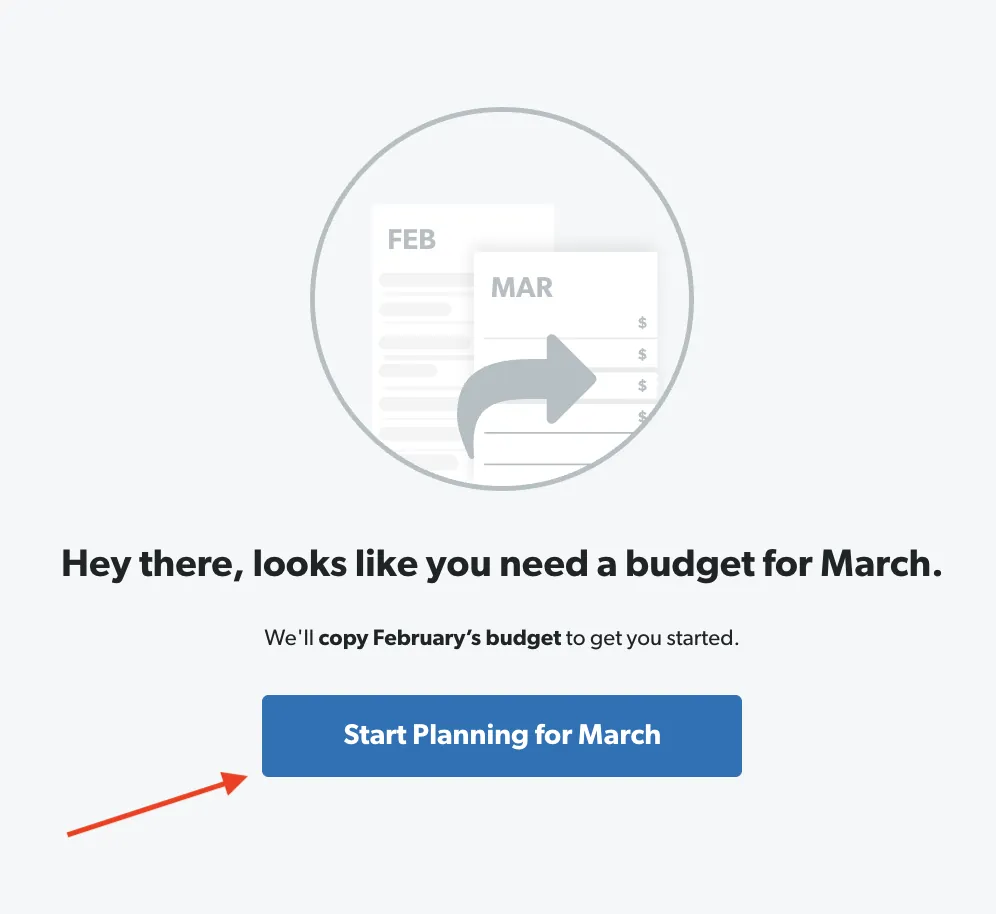
From EveryDollar's help centerA screen saying "Hey there, looks like you need a budget for March" with a Start Planning for March button.everydollar.help.ramseysolutions.com, as of

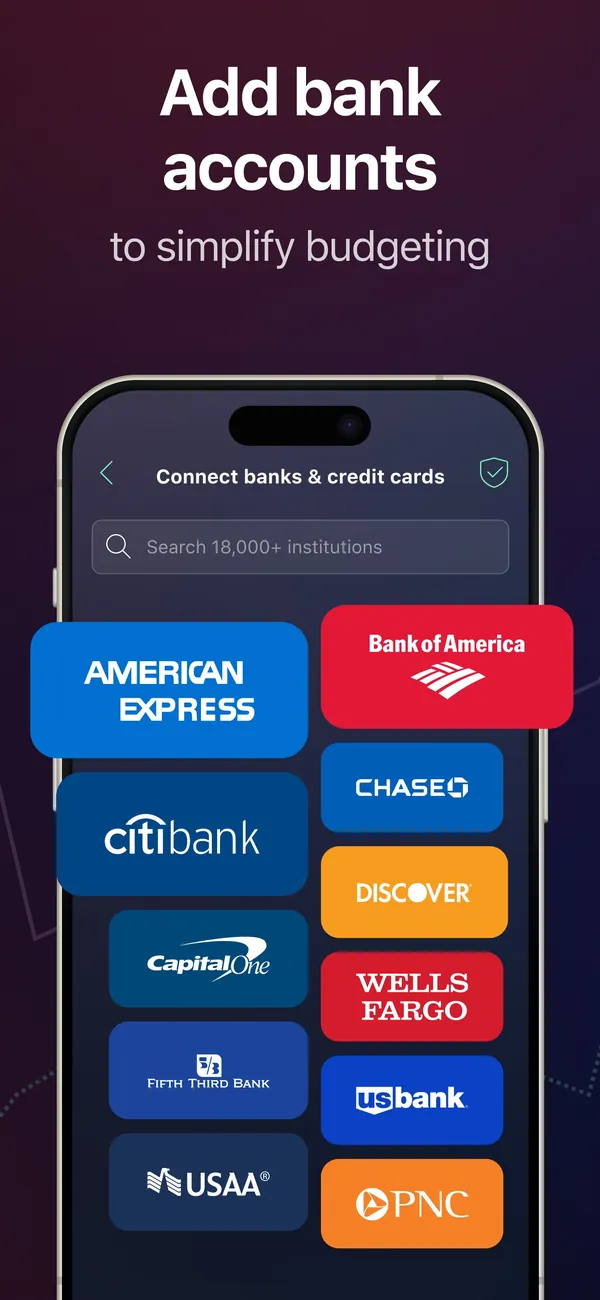
App Store marketing imageApp Store image with the headline "Add bank accounts to simplify budgeting" showing a Connect banks & credit cards screen.App Store listing, as of
This is education, not financial advice.